How to do a digital declutter
December 11, 2025 - Written by Andreas
One activity that always gives me a bit of peace of mind is doing a digital declutter. This is just like a physical declutter, but instead of clearing out our drawers and cupboards of junk, we are clearing out our digital spaces. It is best if you do some of these things monthly to keep your devices tidy. With some regular maintenance, it doesn’t have to be very time-consuming. In this declutter, I will go over my phone, computer, cloud storage, email, and I will briefly touch upon social media. Of course, this guide and lists extend to any device or service you can think of.
Decluttering I: My phone
I will start off with my phone. To provide a small little checklist, I will be decluttering the following items:
- Apps & subscriptions
- Photos
- Files
- Contacts (optional)
- Messages
- Notes
- Browser
- Notifications
Finally, we will install any remaining updates. This might also be a good opportunity to replace a broken screen protector (this always makes my device feel new again).
Apps & subscriptions
The first step is to go critically through your apps list and delete whatever you don’t use any more, or perhaps what you don’t want to use any more. If you’re not sure, you could consider how long you haven’t used the app for; whether it adds value to your daily life or not; or maybe whether you already have another app that does the same job. And in the end, if you’re unsure—remember that reinstalling an app is done in a jiffy.
Also make sure to check whether you have any running subscriptions for apps or services that you don’t need any more.
- Delete apps that you don’t use or haven’t used in a while
- Delete apps which do not add value to your daily life
- Delete apps that do not serve a unique purpose
- Unsubscribe from apps or services you no longer need
Photos
Next up is to clear out your on-device photo albums. Delete duplicate photos, fuzzy images, or just photos which do not add anything (such as screenshots).
- Delete duplicate and fuzzy images
- Delete photos that do not add value (e.g., screenshots)
Files
Clear out your phone’s internal storage (to the extent that you can). For example, your downloads folder, or music or movies folders.
- Delete files and folders that you’re not using
Contacts
Once in a while, I also like to clear out my contacts. I delete duplicate contacts and people I know I will not be talking to again.
- Delete duplicate contacts
- Delete contacts of people you’re no longer in touch with and no longer will be
Messages
Depending on the messaging apps that you use, you can go through your conversations and either delete or archive them in case you no longer need them. I keep all my conversations archived for peace of mind (unless they require a response), but if you don’t, you could use the archive for ‘old’ conversations you don’t want to delete but would like to have out of sight.
- Delete old conversations that are no longer relevant
- Archive chats that do not require your attention any more
Notes
We’ll delete any notes we still have on our phone but do not need any more.
Browser
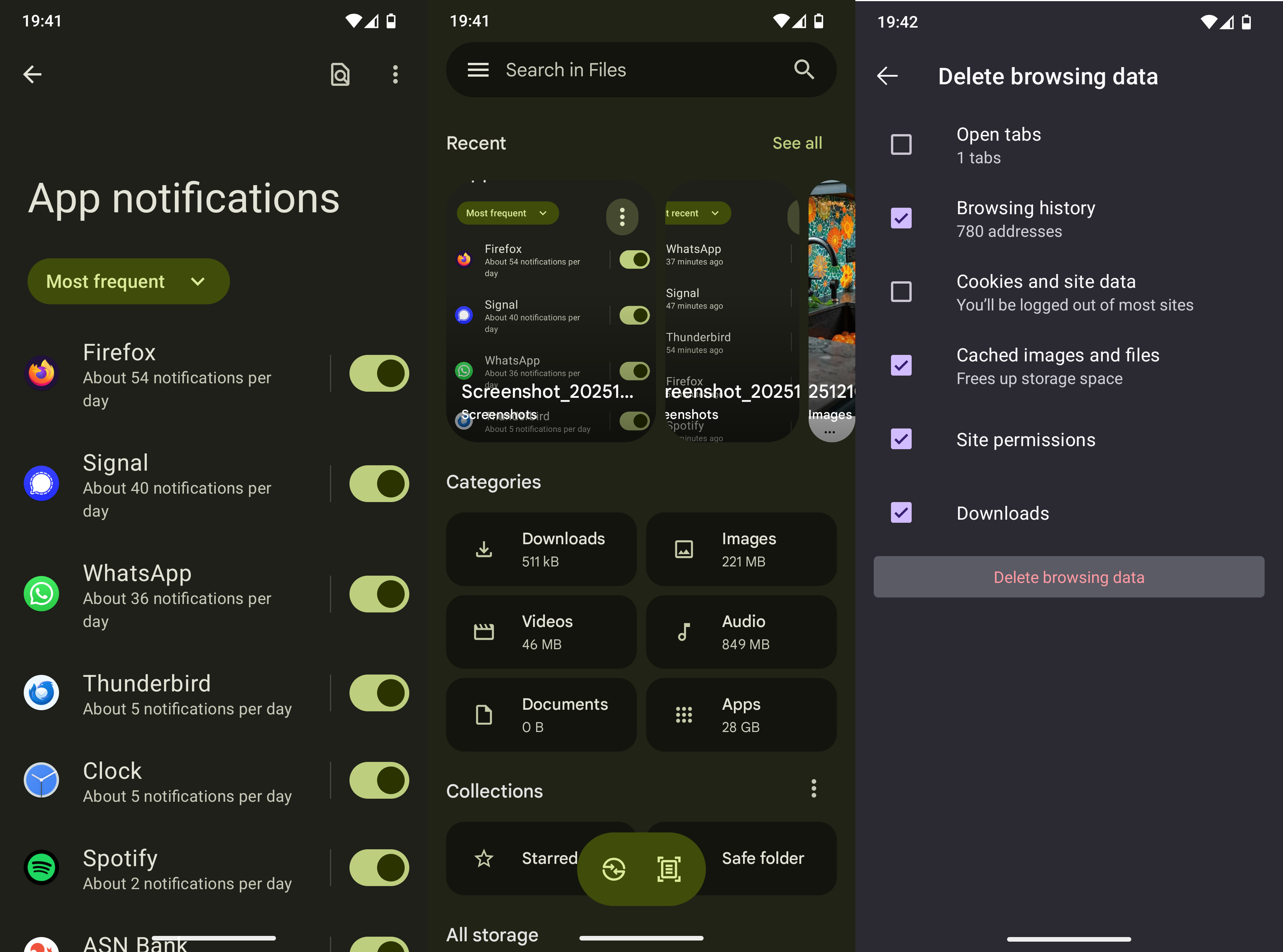
Finally, to clear up my browser, I delete my browsing history as well as cached images and files.
- Delete browsing history
- Delete cached images and files
Notifications
A common distraction nowadays are notifications. It might be worth it to take a moment to review your notifications: What apps send most of them, and do you really need them?
You can go to your phone’s Settings, go into Notifications, and usually you can find which apps send you the most notifications (and what categories these are). You could then disable notification categories that you no longer want to see (or even from apps completely).
- Turn off notifications that do not add value and that generally do not require your attention
Updates
Finally, don’t forget to update your apps and your system to keep it secure and up-to-date. For good measure, you can also reboot your device after cleaning and updating for a ‘fresh’ start.
Decluttering II: My computer
The second part of decluttering pertains to my computer. Most time will go to clearing out my files, but there will be some other parts as well. Here’s the checklist:
- Files
- Browser
- Programs
Files
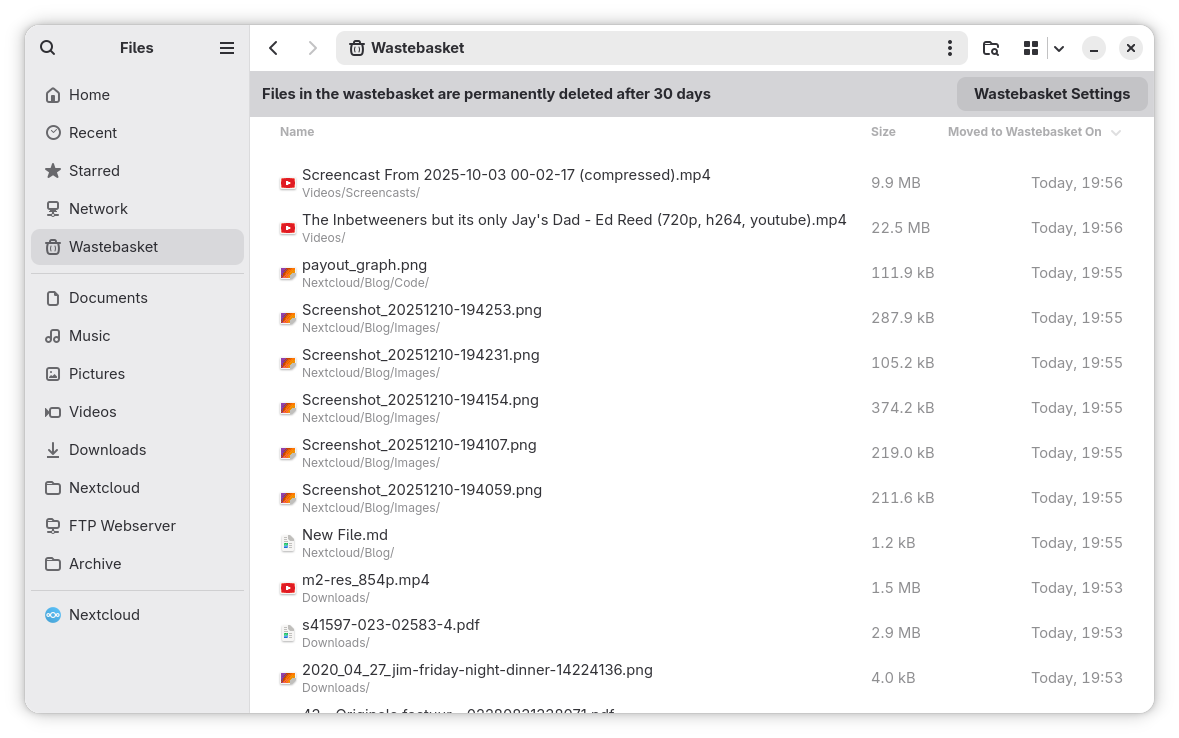
Clearing out my computer’s files can be quite a tedious task, so it might be worthwhile to have a system you can stick to. My system is simply to go to my home folder and go folder by folder and delete any files or folders that I no longer need, or organise files into the correct place. Once again, I just check in with myself whether I will still need a file or folder in the future, and if I don’t, I delete it.
- Delete or move every file in your Downloads folder
- Go through your drive and delete or move files as necessary
- Empty your rubbish bin
Browser
For the browser, we’ll do the same as on our phones: delete browsing history and remove cached images and files. If you want to, you can also take the time to review your privacy settings and extensions while you’re at it. Furthermore, you could go through your bookmarks and delete unused ones.
- Delete browsing history and cached images and files
- Revise settings and extensions
- Delete unused bookmarks
Programs
Just like with our phone apps, we can also go through our computer programs to delete whichever we don’t use any more or are not planning to use.
Updates
Finally, make sure to update your software and your system too (and drivers if necessary) to stay up to date and secure.
Decluttering III: Cloud storage
To declutter my cloud storage, I usually go through my files in the same way as I would with my local files on my computer, simply following the folder structure and deleting files I no longer need.
- Delete or move files and folders you no longer need
- Empty your rubbish bin
Decluttering IV: Email
Decluttering your email depends a lot on the system you’ve got in place. My inbox contains emails that require some form of action. If I need to keep them and they don’t require anything from my side, I put them in the correct archive folder. Hence, an email declutter would consist of going through my inbox and dealing with emails as much as I can. If I want to do a deep declutter, I can also go through my archive folders and delete emails I no longer need.
If you already have a system for your email, you could make sure your emails conform to this system again. Delete old emails and move emails to their respective folders, for example.
If you don’t have a system yet, this might be a nice time to implement one and sort your email into this system.
- Deal with all email in your inbox
- Delete old emails from your folders
- Unsubscribe from newsletters once you get them
- Review your existing system, delete unneeded folders and labels, and make sure your email conforms to your system
- Empty the spam and bin folders
Decluttering V: Social media
Finally, you can also declutter your social media. This obviously will look different depending on the platform, but think of the following action points:
- Revise your privacy settings
- Unfollow or unsubscribe from channels/people that do not interest you any more or do not add any value
- Remove any saved posts that you know you will not need any more
- Delete any of your own posts that you do not want to be up any more
- Delete accounts of platforms you don’t want to use any more
How to keep this up?
Obviously, this is quite a long list to keep up. However, I found that it comes easier after the first, initial “deep clean”. I try to do it once every month—at least my photos, files, and apps. Using these checklists, I keep my devices clean of clutter, without having to resort to dodgy device cleanup apps.
< back homeAndreas' blog © 2025 by Andreas Knoben is licensed under CC BY-SA 4.0

